

Canva Integration
Canva Integration
Import your Canva designs directly into Adwerx ad campaigns — no downloading, no switching tabs.
Overview
The Adwerx × Canva integration lets you move from a finished design to a live ad campaign in just a few clicks. Once connected, your Canva account appears directly inside the Adwerx ad builder — so you can select any saved design and import it as your ad creative without ever leaving the platform.
With this integration you can:
- Connect your Canva account to Adwerx in a single authorization flow
- Browse and select any design saved in your Canva account
- Import designs directly into the ad creative step of any Adwerx campaign
- Automatically export and import the correct ad size based on the placement selected
📌 Note: A paid Canva subscription is not required. The integration works with a free Canva account.
Before You Begin
Make sure you have the following before connecting:
- An active Adwerx account
- A Canva account (free or paid)
- Canva designs saved to your account in the correct dimensions for your ad placement
💡 Tip: Adwerx will automatically select the correct export size based on the ad placement you're building. For best results, design at 1080×1080 px for Facebook/Instagram placements and 300×250 px for web placements.
How to Connect Your Canva Account
You'll be prompted to connect your Canva account the first time you click Import From Canva inside the ad builder. Here's what that flow looks like:
Step 1: Start or open a campaign
Log into your Adwerx account and begin setting up a new ad campaign, or open an existing draft. Navigate to the Review Your Ad step.

The Import From Canva button appears in the Choose Your Creative panel alongside Upload Your Own Ad
Step 2: Click "Import From Canva"
In the Choose Your Creative panel on the left side of the ad builder, click Import From Canva. If your Canva account is not yet connected, a prompt will appear asking you to authorize the connection.
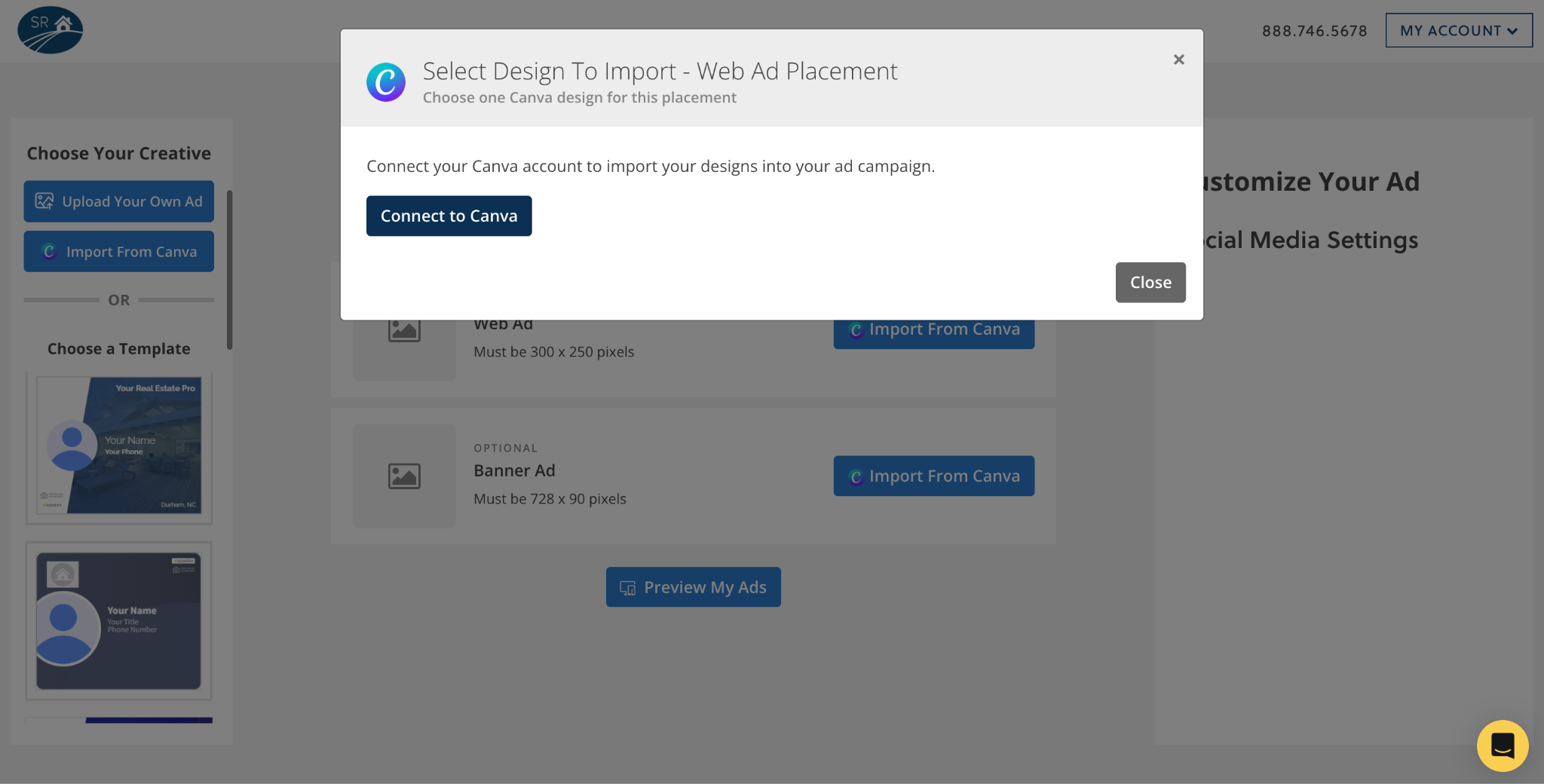
Click Connect to Canva and log in with your Canva credentials to authorize the integration
Step 3: Authorize the connection
- Click Connect to Canva in the modal that appears.
- You will be redirected to Canva to log in and grant Adwerx access to your designs.
- Once authorized, you will be returned to Adwerx automatically.

📌 Note: You only need to connect your Canva account once. After the initial authorization, your designs will be available every time you click Import From Canva.
How to Import a Design
Once your Canva account is connected, selecting and importing a design takes just a few clicks.
Step 1: Select your placement
Adwerx will show you the available ad placements for your campaign type — for example, a Web Ad (300×250 px) and a Facebook Ad (1080×1080 px). Each placement has its own Import From Canva button.
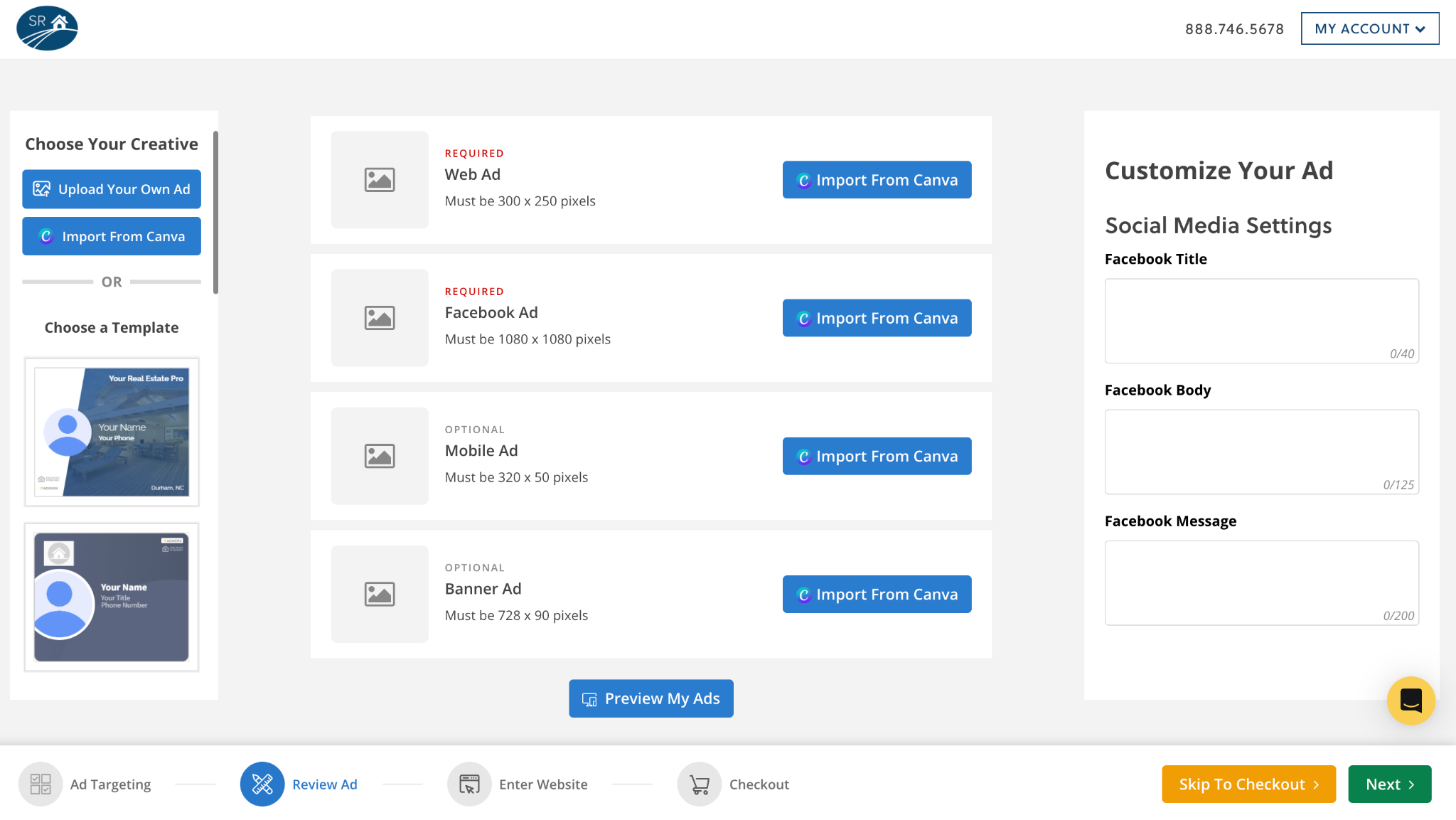
Click Import From Canva next to the placement you want to fill with your Canva design
Step 2: Browse and select a design
A modal will open showing your saved Canva designs. Browse your library and click the design you want to use for this placement.

Your saved Canva designs appear in the import modal — click any design to select it
💡 Tip: Only designs that match or can be exported at the required dimensions for the selected placement will import correctly. If a design appears but doesn't look right after import, check its dimensions in Canva.
Step 3: Click "Import Design"
After selecting a design, click the Import Design button in the bottom right corner of the modal. Adwerx will automatically export the design from Canva at the correct size and insert it as your ad creative.
Step 4: Repeat for additional placements
If your campaign includes multiple placements (for example, both a web ad and a Facebook ad), repeat the import process for each placement. You can use the same design or different designs for each.

After Importing
Once your design is imported, it will appear as a preview in the ad builder. You can:
- Continue through the campaign setup as normal — targeting, budget, and checkout remain unchanged
- Replace the design at any time by clicking Import From Canva again for that placement
- Switch to Upload Your Own Ad if you prefer to upload a file instead
After import, Adwerx handles all bidding, targeting, and optimization automatically. Your Canva design will run as a li ve ad across the placements included in your campaign.

Frequently Asked Questions
Do I need a paid Canva subscription? No. The integration works with any Canva account, including free accounts.
Which Adwerx products support Canva import? The integration is available for all products.
What happens if my design is the wrong size? Adwerx will attempt to export your design at the correct size for the selected placement. For best results, design at the recommended dimensions before importing. If the imported creative doesn't look right, return to Canva, resize the design, and import again.
Can I use the same design for multiple placements? Yes. You can import the same Canva design into multiple placements within the same campaign.
Is there a cost to use the Canva integration? No. The integration is available to all Adwerx customers at no additional cost.
What if I don't see my designs in the import modal? Make sure you are logged into the correct Canva account and that your designs are saved (not in draft). If your designs still don't appear, try disconnecting and reconnecting your Canva account, or contact Adwerx support.
Need Help?
If you have questions about the Canva integration or run into any issues, our support team is here to help.
Help Center: adwerx.com/help-center Phone: 888.746.5678 Hours: Monday–Friday, 9am–6pm ET
.svg)
.svg)

.svg)

.svg)